Getting Started with Lyra Quiz
Follow these steps to set up and run the application.
Step 1: Get Your Gemini API Key
First, you need to obtain an API key from Google AI Studio. This key allows the application to communicate with the Gemini model for generating quizzes.
- Visit Google AI Studio.
- Create an account or sign in if you already have one.
- Navigate to the API Keys section (usually under 'Settings' or 'Account').
- Create a new API key (you might need to set up a project or billing depending on usage or Free Tier).
- Copy your new API key.
Next, you need to configure the application with your API key. Create a file named .env in the main directory of the Lyra Quiz application. Add the following line, replacing YOUR_API_KEY_HERE with the key you just copied:
GEMINI_API_KEY=YOUR_API_KEY_HERENote: Keep your API key secure and never share it publicly. The .env file should be kept private.
Step 2: Run the Application
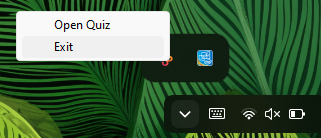
Once your API key is configured in the .env file, you can start the application. It will automatically open a browser tab and place an icon in your system tray.
Even if you close the browser tab, the application continues to run in the background via the system tray icon. To fully close the application, you need to exit it from the system tray menu.
Step 3: Wohhoo! You're Ready!
Congratulations! You have successfully completed the setup steps.
Download Lyra Quiz